Monday, March 6, 2017

Video & Flipped Classroom Resources (EdPuzzle and more)

Providing video tutorials/lessons/directions for students can be a powerful strategy. It can help facilitate differentiated learning experiences:
  • View a lesson when ready.
  • Pause video to process learning.  
  • Progress through lessons at differentiated pacing.
  • Rewatch lessons to review or relearn.
  • Provide extension learning and activities.
  • Provide directions for learning stations.
  • Flip a lesson to leverage class time for more engaging activities.
  • Many more!
Below are some tools that can help facilitate effective use of screencasts and video lessons.


Hold students accountable for watching the videos you assign! This tool allows you to embed questions into a video, disable students' ability to skip to the end of a video without watching it and view analytics for which students watched the video and how well they answered the questions. 

Videos can be embedded directly into Schoology or linked from Seesaw. Students can login with Google to be added directly to your class!


This is a simple, powerful screen recording tool for creating screencast recordings on a Mac or PC. The free version will meet the needs of most teachers. The paid version is $15 per year and allows for storage and deeper editing of videos. There is a quick tutorial on the site's main webpage.


This is similar to Screencast-O-Matic, but it works on a Chromebook. It's a free Chrome extension that you can install on your Chrome toolbar. Because it works on a Chromebook, it's a great tool for your students to use. You can empower them to create tutorials of their own! This tool was detailed more completely in a previous tech tip as well.


If you are using Seesaw, you can record your instructions with the video recording feature built into this tool. For early learners, it is helpful to print a QR code to the video and post it in the room. Students scan the QR and are taken directly to your directions. This is a great way to clone yourself for station work!


Wednesday, March 1, 2017

Track student progress in Seesaw and Schoology

Seesaw and Schoology both provide tools for tracking progress toward mastery. Using these built-in features is a great way to gather and review data about your student's learning progress.

Schoology Mastery Menu

By attaching standards to test questions, assignments, discussions or rubrics, teachers can track progress under the Mastery menu. Students can also review their own mastery progress.


Seesaw Skills View

By creating skills in Seesaw, teachers can assess anything uploaded to Seesaw on a 1-4 star scale. These ratings are attached to each individual student item and are only visible to the teacher. Teachers can see a full class view or filter the view by student, subject or skill. Like Schoology, the levels are color coded for quick review.

For more information, visit the Seesaw Skills View help page.


Monday, February 20, 2017

Digital Learning Day: February 23rd

Digital Learning Day: Thursday, Feb 23rd


Help celebrate Digital Learning Day in your classroom! 

What is Digital Learning?
Digital Learning is integrating technology to make teaching and learning more
engaging, efficient and effective. Integrating technology helps students develop
21st Century skills that are necessary for them to be  successful 
in their education,
personal and professional lives: empowered learner, digital citizen, knowledge
constructor, innovative designer, computational thinker, creative communicator and
global collaborator (ISTE Student Standards).

Why Celebrate Digital Learning?
Digital Learning Day started 2012 and is a national event where educators celebrate
and showcase 
innovative teaching that leverages technology as a catalyst
for student learning. It's not really about technology tools; it's about highlighting how
technology is transforming teaching and learning!

How Can Your Class Join the Celebration?
  • Tweet about your Digital Learning activities using hashtags: #digitalday728,
    #DLDay and tag @OfficialDLDay.
  • Post tech in action in your classroom on Seesaw or Schoology.
  • Host a Google Hangout or Skype with another class.
  • Have students do a Digital Day promo activity answering questions such as 
    • How does technology impact your learning?
    • What is the future of technology?
  • For more ideas and to see innovative technology integration ideas from other
    schools, visit the Digital Learning Day website.

Monday, February 13, 2017

Have students explain their learning with audio/video

There is great value in having students process what they have learned. Students can explain their own learning, reflect on the process or use the recordings to teach other students. Listed below are some readily available tools to have your students record themselves.

1. Schoology

  • Assignment: Students can record their reflections privately using the microphone icon on the upload tab. They can record their thoughts in audio or video.
  • Discussion: Students can share their reflections publically using the microphone icon to post a video or audio response. Other students can also respond to these recordings.


  • Picture & Recording: Students can take a picture of their work and record themselves explaining it.
  • Drawing & Recording: Students can draw a picture or solve a problem and then record themselves explaining their process.
  • Video: Students can video record themselves explaining their learning. 


  • Students can put images and text onto a slide and record themselves explaining it.

  • Students can use this Chrome extension to record their computer screens. They can show their completed work and record themselves explaining what they've done and how they've done it. They can also use the webcam to record themselves instead of the screen. This could be useful for demonstrating something that is offline.


Thursday, February 9, 2017

Tech Tip: Recording a Rap

Here's a bonus tech tip this week . . . http://createraps.com/

It's a free and simple website that allows students to record themselves singing a rap. No account is needed, and it is very simple to use. Just choose an audio track, record and download. The download can then be easily transferred to Google Drive for sharing.

This would be a great tool to have students explain their learning through song!


Monday, February 6, 2017

8 Things to Look for in Today's Classroom


It's been awhile since we all heard George Couros speak to us at the beginning of the year about the importance of the innovator's mindset and our changing classrooms. The image below is a visual reminder of 8 things to look for in today's classroom--specifically, a learner-focussed classroom.

Seesaw, Schoology and Google Apps are all great tools for helping to facilitate many of these goals. If you would like to meet and discuss ways to achieve this, feel free to contact me.


Wednesday, February 1, 2017

Creative Ways to Integrate Google Slides

Google Slides isn't just for creating traditional linear presentations. You and your students can use Slides to create interactive kiosks and a variety of digital materials. Schoology and Seesaw can be used to share and collect these creations.

Comic Strip & Visual eBooks


Digital Vocabulary Packets


Book Study Guides

Interactive Learning: Magnetic Poetry, Build a Snowman 


Game Boards: Jeopardy & Class Baseball


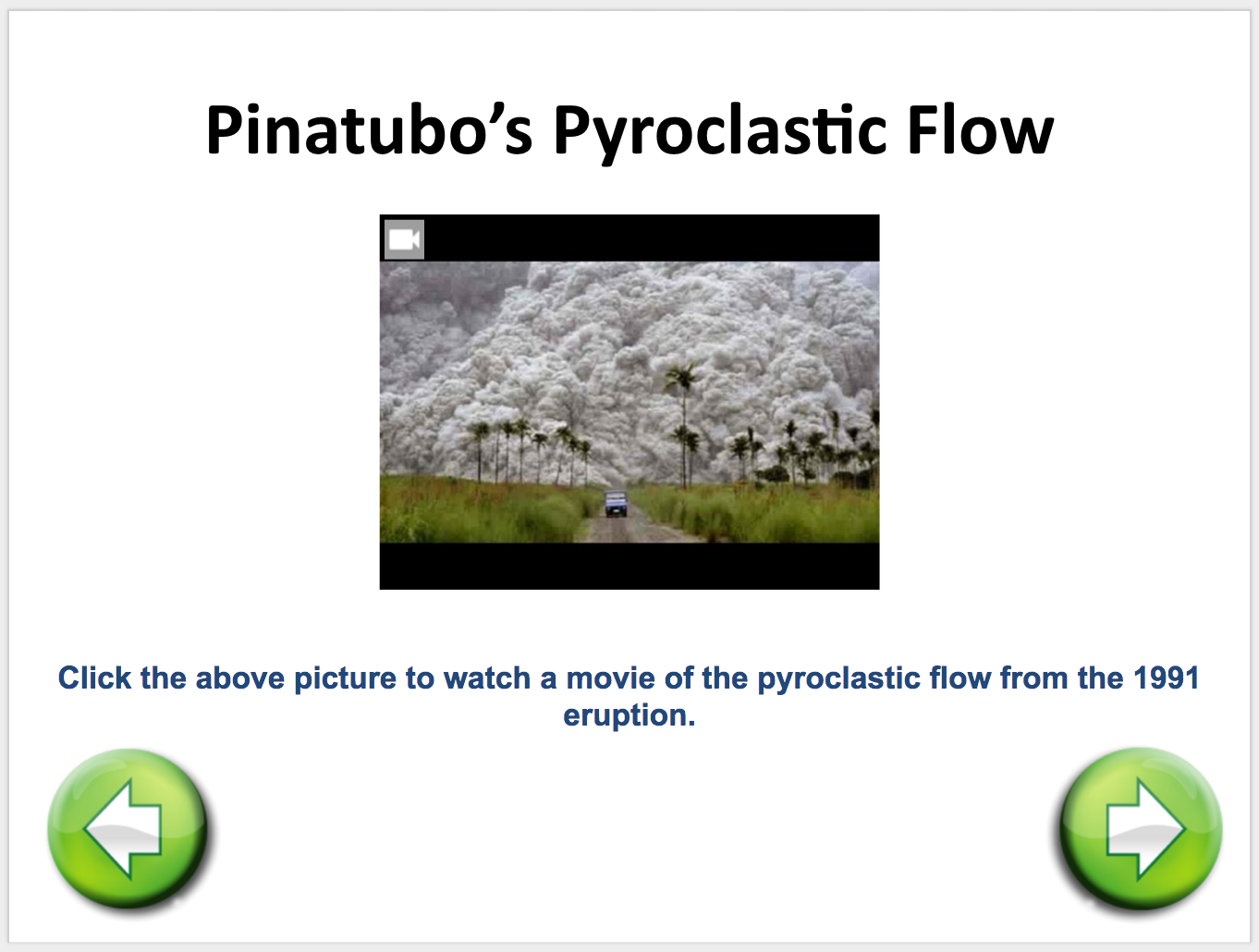
Interactive Kiosks: Geometry, Volcano Project,  Periodic Table, 


Flyers & Brochures


Newsletters


Worksheets